Metadata is communication; it can tell a story about research and paint a picture for others to respond to and learn from, across the world and throughout the forthcoming generations. Metadata can feel technical with words like ‘infrastructure’ and ‘schema’, and sometimes, like tech in general, it comes with hyperbole. But metadata really is part art (storytelling and pictures) and part science (structured models and standards) with both aspects being equally important, and requiring people as well as systems. That necessary combination of human and machine involvement also makes metadata challenging.
Once a year we release all metadata records for content registered with Crossref in a public data file. This year’s version, containing nearly 180 million records, is now available. It includes metadata associated with all Crossref-registered DOIs in JSON-lines format.
Crossref Ambassadors act as local points of contact, meeting editors, librarians, researchers, and institutions to help them navigate Crossref services and understand how strong metadata supports visibility, integrity, and trust in research. They explain how to participate in our rich network of connections between works, people, and institutions, in ways that make sense in their own contexts. And last year, being our 25th anniversary, Ambassadors also massively contributed to our celebrations!
We have renewed our partnership with DOAJ to focus on a new set of objectives that reflect both organisations’ commitment to improving sustainable and equitable services and infrastructure. This renewed collaboration focuses on improving the quality of scholarly metadata while expanding support for journals in low- and middle income- countries.
We have worked together since 2021, primarily to encourage the dissemination and use of scholarly research using online technologies, and regional and international networks, partners and communities. This partnership has helped to build local institutional capacity and sustainability within the global scholarly communication ecosystem. A continued partnership also reflects that we have a shared community; currently almost 90% of DOAJ journals are represented in Crossref.
If you register content with us using the web deposit form, XML upload via our admin tool, or XML deposit using HTTPS POST, your submission will be placed in our submission queue.
When your deposit has been processed, we’ll email you a submission log containing the final status of your submission. You should review these submission logs to make sure your content was registered or updated successfully.
If you register content with us by sending the files to us directly using the Crossref XML plugin for OJS, or if you’re using the new Metadata Manager, your submission is processed immediately (it isn’t placed in our submission queue). We don’t send you a submission log to show the final status of your submission; instead, you’ll see a message within the interface of the tool you are using. But a submission log is still generated, and you can log in to our admin tool using your account credentials to view the submission log for your deposit.
The submission queue
If you’ve registered some content with us using the web deposit form, XML upload via our admin tool, or XML deposit using HTTPS POST, and you don’t receive your submission log email immediately, it is likely that your deposit is waiting in the submission queue.
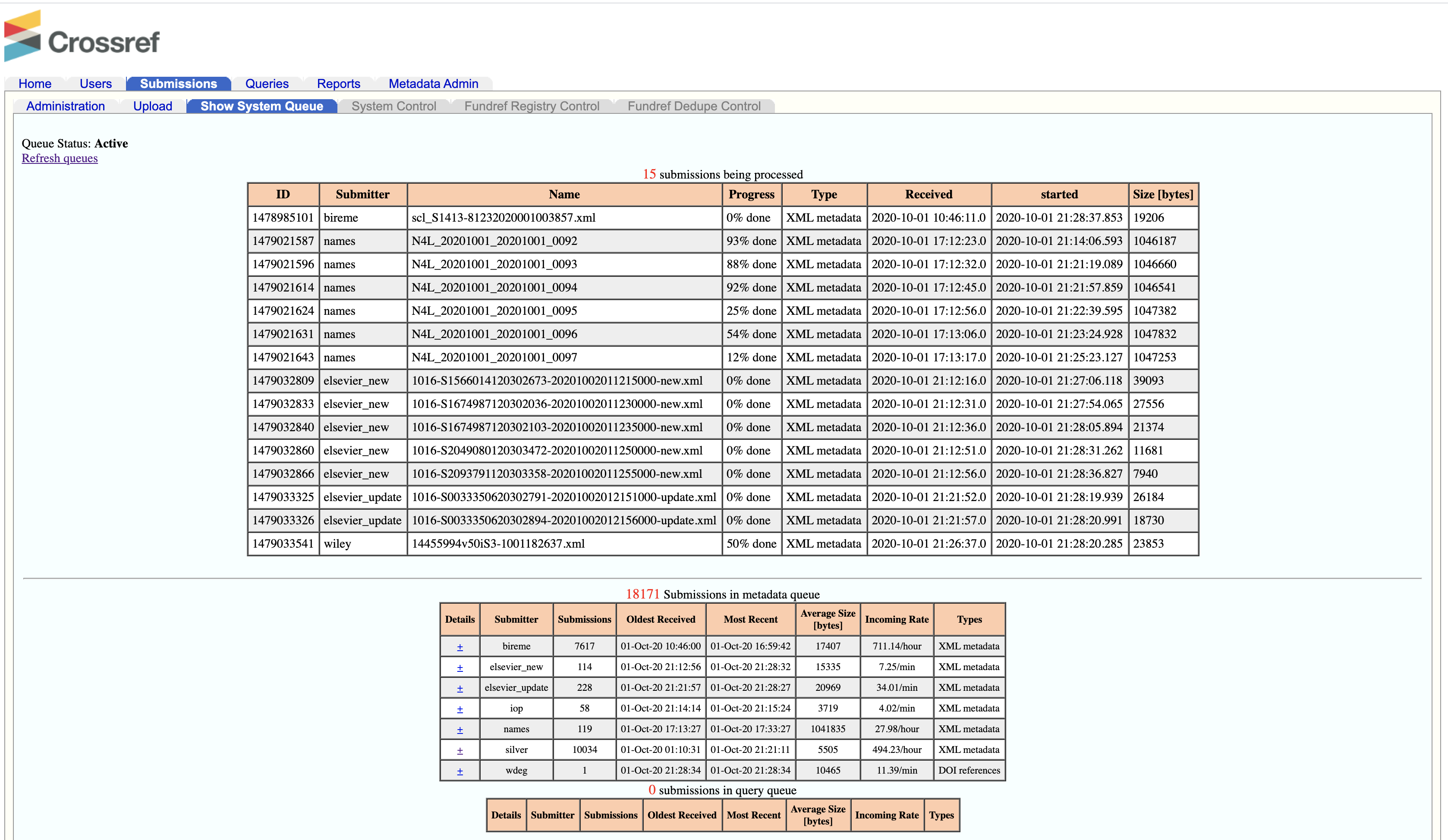
To see the submission queue, log in to the admin tool using your account credentials, and click Show My Submission Queue on the opening page (or click Submissions, then Show System Queue).
At the top of the page, you will see all the submissions that are being actively processed at the moment. They are listed individually by submission ID number, along with file name, file type, percent completed, and timestamps.
The submissions that are still waiting to be processed are displayed at the bottom of the page. They are grouped by the role used to submit the files. Click + under Details (on the left, next to your depositor ID) to expand a list of your deposits waiting to be processed. You will also see the submission ID, filename, and position in the queue.
It typically takes only a few minutes for a submission to be picked up for processing and then for the processing to be completed. Processing may take longer depending on overall system traffic, and submission size and complexity. If there is a problem with the submission queue, we usually post an update - please check our status page for updates. If you’re concerned about your submission processing time, or are planning a large update and would like to coordinate with us about timing, please contact us.
Submission logs
Submission logs are delivered through these channels:
We email you an XML-formatted log for records that are submitted through the web deposit form or Simple Text Query, uploaded via our admin tool, or sent to us through HTTPS POST.
The log is sent to the email address you provided when using the web deposit form or Simple Text Query, or included in the <email_address> field in your deposit XML.
The email will have the subject line: Crossref Submission ID and it’s sent once your submission has made it through the queue. It includes your submission ID, tells you if your deposit has been successful, and provides the reason for any failure.
View submission logs for past deposits
If you didn’t receive a submission log email, you can use the admin tool to search for submission logs for past deposits:
Click the Submissions tab, then the Administration sub-tab
Click Search at the bottom of the screen, and you’ll see a list of all past deposits for your account, from newest to oldest.
Click on the Submission ID number to the left of any deposit to access the Submission details, including the submission log for that deposit, or click on the file icon to view the file that was submitted.
After step 3 above, you can also narrow your search by entering parameters into any of the following fields on the Submissions administration sub-tab page:
Select a date range using the Last Day, Last Three Days, or Last Week buttons, or enter a custom date range to search for older deposits
If your account submits metadata deposits for multiple prefixes, you can use the Registrant field to narrow your search to just the deposits for a single prefix.
Click Find next to Registrant
In the pop-up window, enter the member name associated with the prefix and click Submit
Select the appropriate member name/prefix and the pop-up window will close. You’ll see a code for that prefix entered in the Registrant field
Select a deposit type from the Type drop-down menu to limit your search to just one type of deposit.
Metadata will limit results to full metadata deposits. This is the most common type.
DOI resources will limit results to resource-only deposits, including references, Similarity Check full-text URLs, funding metadata, and license metadata
Conflict Management will limit results to text files that were deposited to resolve conflicts
Check the Has Error box to only search for deposits with errors.
Check the Has Conflict box to only search for deposits with conflicts.
View the history of a DOI
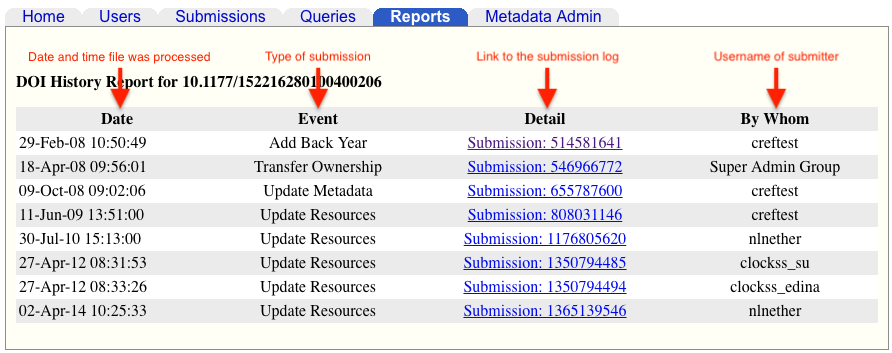
Find the deposit history of an individual DOI using the admin tool, including all deposit files and submission logs.
The report lists every successful deposit or update of the DOI being searched. View the submission details (including log and submitted XML) by clicking on the submission number:
Use HTTPS to retrieve logs
In addition to the submission report you receive by email, you can also retrieve the results of submission processing or the contents of a submission at any time using HTTPS. You need to include your account credentials in the URL.
If you are using organisation-wide shared role credentials, please use this version of the query, and swop “role” for your role, and “password” for your password.
If you are using personal, unique user credentials, please use this version of the query, and swop “name@someplace.com” for your email address, “role” for your role, and “password” for your personal password.
In both versions of the query, you can choose to track a submission by either its doi_batch_id or by its file_name. We recommend choosing file_name.
The main difference between using doi_batch_id and file_name is that doi_batch_id is inserted into the database after the submission has been parsed. Using file_name is preferable because submissions in the queue or in process can be tracked before deposit. Non-parse-able submissions can also be tracked using this method.
To use this feature effectively, make sure each tracking ID (doi_batch_id or file_name) is unique as only the first match is returned.
Finally, you need to add in the type of data you want back. Use result to retrieve submission results (deposit log) or use contents to retrieve the XML file.
Page maintainer: Isaac Farley Last updated: 2025-December-10