Metadata is communication; it can tell a story about research and paint a picture for others to respond to and learn from, across the world and throughout the forthcoming generations. Metadata can feel technical with words like ‘infrastructure’ and ‘schema’, and sometimes, like tech in general, it comes with hyperbole. But metadata really is part art (storytelling and pictures) and part science (structured models and standards) with both aspects being equally important, and requiring people as well as systems. That necessary combination of human and machine involvement also makes metadata challenging.
Once a year we release all metadata records for content registered with Crossref in a public data file. This year’s version, containing nearly 180 million records, is now available. It includes metadata associated with all Crossref-registered DOIs in JSON-lines format.
Crossref Ambassadors act as local points of contact, meeting editors, librarians, researchers, and institutions to help them navigate Crossref services and understand how strong metadata supports visibility, integrity, and trust in research. They explain how to participate in our rich network of connections between works, people, and institutions, in ways that make sense in their own contexts. And last year, being our 25th anniversary, Ambassadors also massively contributed to our celebrations!
We have renewed our partnership with DOAJ to focus on a new set of objectives that reflect both organisations’ commitment to improving sustainable and equitable services and infrastructure. This renewed collaboration focuses on improving the quality of scholarly metadata while expanding support for journals in low- and middle income- countries.
We have worked together since 2021, primarily to encourage the dissemination and use of scholarly research using online technologies, and regional and international networks, partners and communities. This partnership has helped to build local institutional capacity and sustainability within the global scholarly communication ecosystem. A continued partnership also reflects that we have a shared community; currently almost 90% of DOAJ journals are represented in Crossref.
Setting up your iThenticate v1 account (admins only)
Documentation Menu
Setting up your iThenticate v1 account (admins only)
This section is for Similarity Check account administrators using iThenticate v1. You need to follow the steps in this section before you start to set up your users and share the account with your colleagues.
If you are using iThenticate 2.0 rather than iThenticate v1, there are separate instructions for you.
Not sure if you’re using iThenticate v1 or iThenticate 2.0? More here.
Your personal administrator account in iThenticate v1
Once Turnitin has enabled iThenticate v1 for your organisation, the main editorial contact provided on your application form will become the iThenticate account administrator. As an administrator, you create and manage the users on your account, and you decide how your organisation uses the iThenticate tool.
To start with, you need to login to iThenticate and set your password.
Log in to your administrator account (v1)
Start from the link in the invitation email from noreply@ithenticate.com with the subject line “Account Created” and click Login
Enter your username and single-use password
Click to agree to the terms of the end-user license agreement. These terms govern your personal use of the service. They’re separate from the central Similarity Check service agreement that your organisation has agreed to.
You will be prompted to choose a new password
Click Change Password to save.
How do you know if you’re an account administrator?
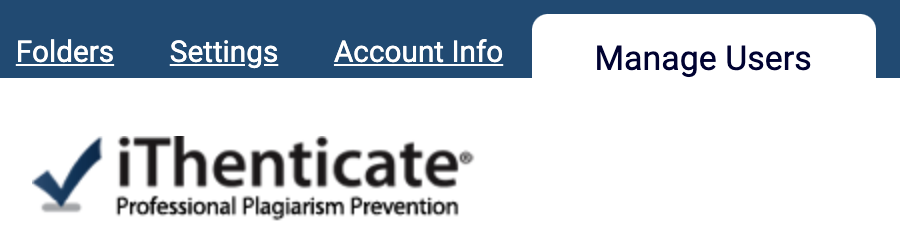
Once you’ve logged in, you will only be able to see the Manage Users tab if you’re an account administrator.
So if you can’t see Manage Users or Users, you’re not an account administrator, and you can skip ahead to the user instructions for iThenticate v1.
Updating your personal email address or password
Changing your email address or updating your password is the same for admins and other users. There’s more information in the user instructions for iThenticate v1.
Page maintainer: Kathleen Luschek Last updated: 2022-July-15