We have some rather unusual news to share: Crossref fees are going down again. At its meeting in Paris earlier this month, the Crossref Board approved two further recommendations from the Resourcing Crossref for Future Sustainability (RCFS) project: effective 1st January 2027, we will reduce the majority of Content Registration fees for all 25,000 members, and remove fees for back-year records altogether.
Content Registration fees haven’t increased in around 20 years, and this is the first significant change to them in that time—downwards. Since these fees account for the largest share of Crossref’s revenue (around 60%), and since every member registers DOI records, these changes reach further than anything we’ve announced under the RCFS project so far.
The infrastructure that registers and distributes Crossref metadata has been running and growing for more than two decades. It now does considerably more than it was built to do, and it shows: two large, tightly coupled monoliths (Content System and REST API), where a change in one place risks breaking something in another.
In December 2026, we plan to publish new Crossref Member Practices which will set out the standards we expect all Crossref members to meet. From August to October 2026 we are consulting with our members on a draft of these Member Practices. This blog provides the background to this, and explains how you can share your views.
The Crossref community in India is as diverse as the region that it represents, comprising 1605 members, 11 sponsoring organisations, and 5 ambassadors, who between them cover the length and breadth of this country. Between November 2025 and March 2026, we organised three webinars focused on supporting this community with best metadata and publishing practices. We collaborated with the Directory of Open Access Journals (DOAJ) and the Committee on Publication Ethics (COPE) to embed understanding of metadata’s role in the greater context of publishing integrity.
To work out which version you’re on, take a look at the website address that you use to access iThenticate. If you go to ithenticate.com then you are using v1. If you use a bespoke URL, https://crossref-[your member ID].turnitin.com/ then you are using iThenticate 2.0.
Upload a File allows you to submit a single document from a variety of document types. From the Submit a document menu, click Upload a File, and the Upload a file form opens.
Under Destination Folder, choose the folder to which you wish to upload the file. Its Similarity Report will be added to the same folder.
Complete Author First Name, Author Last Name, and Document Title fields. If Document Title is left blank, the document’s filename will be used.
Click Choose File, and locate the file to upload. Use Add another file to add more files, up to a total of ten.
Click Upload to proceed with with uploading the selected document(s), or click Cancel to cancel the upload.
Zip file upload (v1)
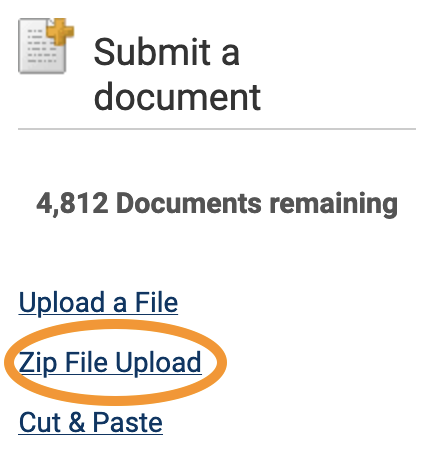
iThenticate allows you to submit multiple documents from a variety of document types in a compressed zip file. The zip file may be up to approximately 100MB in size and contain up to 1,000 individual files. If the zip file exceeds either limit, it will be rejected. Check that your zip file contains only accepted file types, and no duplicate copies of the same file.
Click Zip File Upload from the Submit a document menu. Choose your Destination Folder from the drop-down. The Similarity Report for the file will also be found here.
The information you enter in the Author First Name and Author Last Name fields will be applied to all the documents in the zip file. You can manually change these once the document is uploaded to the folder.
Click Choose file, locate the zip file on your device, and click Upload.
The title of the each document in the zip files will be the default title of each submission.
Cut and paste (v1)
Use the cut and paste submission option to submit information from non-supported file types, or to submit only specific parts or areas of a document.
Only text can be submitted using this method - any graphics, graphs, images, and formatting are lost when pasting into the text submission box.
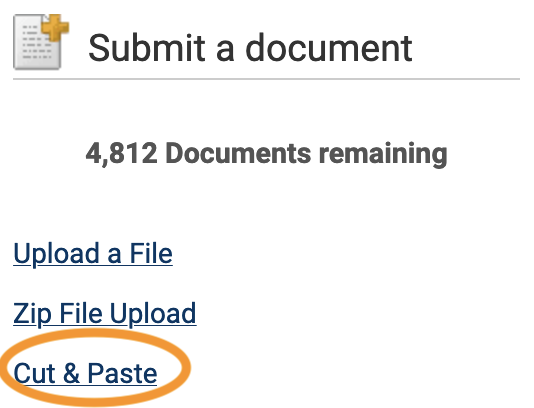
Click Cut & Paste from the Submit a document menu.
Choose your Destination Folder from the drop-down. The Similarity Report for the file will also be found here.
Complete the Author First Name, Author Last Name, and Document Title fields. If no title is given, the default title “Pasted Document” will be used.
Copy your desired text for checking, paste it into the Paste your document in the area below text box, and click Upload.
To view recent uploads, go to the Submit a document menu, click Recent Uploads, and you will see recent uploads listed in reverse chronological order (most recent first). Click the Date & Time header to see the uploads in chronological order (oldest first).
Edit document information (v1)
To edit a document’s information (title and author name), click the edit icon to the right of a document in a folder. You will see the Document Properties page. Edit the fields, and click Update to save your changes.
Page maintainer: Kathleen Luschek Last updated: 2020-May-19