Metadata is communication; it can tell a story about research and paint a picture for others to respond to and learn from, across the world and throughout the forthcoming generations. Metadata can feel technical with words like ‘infrastructure’ and ‘schema’, and sometimes, like tech in general, it comes with hyperbole. But metadata really is part art (storytelling and pictures) and part science (structured models and standards) with both aspects being equally important, and requiring people as well as systems. That necessary combination of human and machine involvement also makes metadata challenging.
Once a year we release all metadata records for content registered with Crossref in a public data file. This year’s version, containing nearly 180 million records, is now available. It includes metadata associated with all Crossref-registered DOIs in JSON-lines format.
Crossref Ambassadors act as local points of contact, meeting editors, librarians, researchers, and institutions to help them navigate Crossref services and understand how strong metadata supports visibility, integrity, and trust in research. They explain how to participate in our rich network of connections between works, people, and institutions, in ways that make sense in their own contexts. And last year, being our 25th anniversary, Ambassadors also massively contributed to our celebrations!
We have renewed our partnership with DOAJ to focus on a new set of objectives that reflect both organisations’ commitment to improving sustainable and equitable services and infrastructure. This renewed collaboration focuses on improving the quality of scholarly metadata while expanding support for journals in low- and middle income- countries.
We have worked together since 2021, primarily to encourage the dissemination and use of scholarly research using online technologies, and regional and international networks, partners and communities. This partnership has helped to build local institutional capacity and sustainability within the global scholarly communication ecosystem. A continued partnership also reflects that we have a shared community; currently almost 90% of DOAJ journals are represented in Crossref.
This section of our documentation is for Similarity Check account administrators who plan to access iThenticate 2.0 through their Manuscript Submission System (MTS).
Not sure if you’re using iThenticate v1 or iThenticate 2.0? More here.
Not sure whether you’re an account administrator? Find out here.
To set up your integration with your MTS, you need to create an API key by logging into iThenticate through the browser. You will then share this API key and the URL of your iThenticate 2.0 account with your MTS.
Please note: If you are sponsored by Biteca, please contact your sponsor who will help you with this.
Step One: Decide how many API scopes and API keys you need
Within iThenticate, you can set up different API Scopes, and within that, different API keys. Most members will just need one API Scope and one API key. However, some members may need more than one.
If you need to integrate with more than one Manuscript Tracking System (MTS), you will need a different API Scope for each MTS.
If you publish on behalf of societies or work with other organisations who want to keep their activities separate from each other, you will need a different API Scope and API key for each society.
If at some point in the future, you need to change your API key for an existing MTS integration, you must generate a new API key under the same scope that you originally used for this integration.
Step Two: Create your API Scope and API key(s)
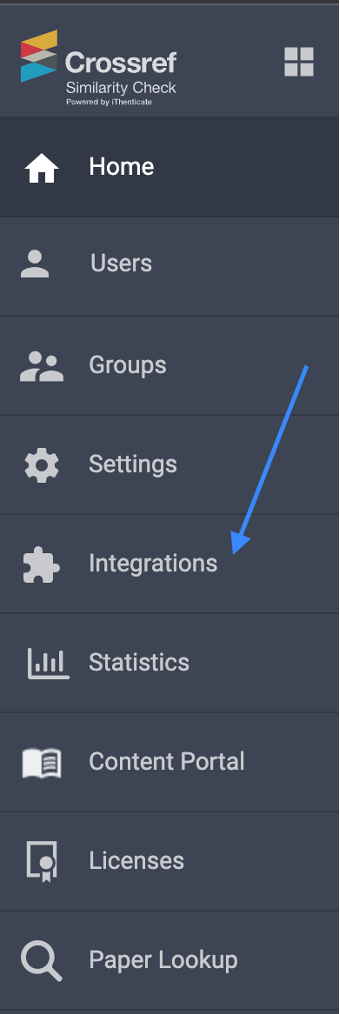
Click on “Integrations” in the menu.
This will bring you to the Integrations section. Click on the “Generate API Scope” key.
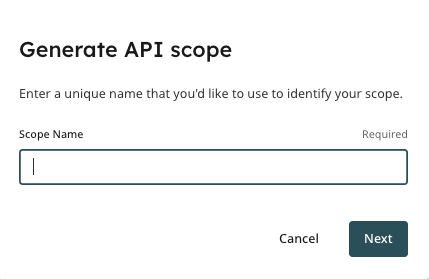
You will then give your API Scope a name.
For example, this may be the name of a particular MTS, or of a particular society.
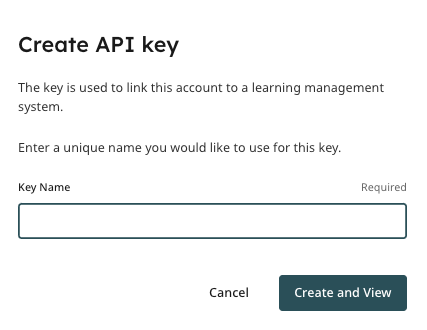
Under your new API Scope, you can then set up your first API key.
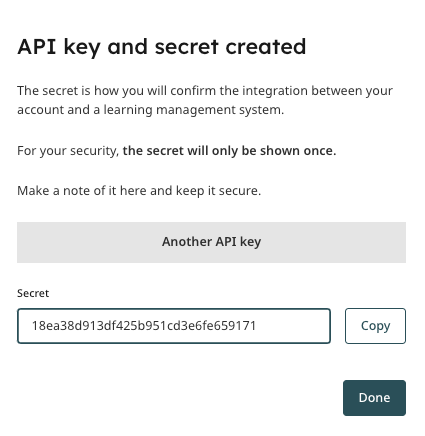
Once you add the key name, you will be able to click on the “Create and view” button. The system will then generate your key.
Step three: Add your API key into your Manuscript Tracking System (MTS)
In order to integrate your new iThenticate 2.0 account and your Manuscript Tracking system(s), your MTS will require from you:
At least one API key
Your unique iThenticate URL containing your Crossref membership number using the following format: https://crossref-xxx.turnitin.com. (For example, if your Crossref Membership number is 1234, your URL will be: https://crossref-1234.turnitin.com. If you are not sure what your Crossref Membership number is, please ask us.
Follow the instructions below for the relevant MTS:
OJS
Follow the instructions found on PKP’s website. You’ll need to ensure that you’re on OJS version 3.3, 3.4, or 3.5. For instructions on how to upgrade your OJS instance, please visit PKP’s documentation here or here, depending on which version you’re currently running.
Editorial Manager
Enter your iThenticate API key(s) and your iThenticate 2.0 account URL into the iThenticate configuration page in Editorial Manager. There are instructions available from Aries Systems here.
eJournal Press
Email your API key(s) and your iThenticate 2.0 account URL to support@ejpress.com and the team at eJournal Press will set up the integration for you.
ScholarOne
If you are already using iThenticate with ScholarOne and are upgrading from iThenticate v1 to iThenticate 2.0, please email your API key(s) and your iThenticate 2.0 account URL to s1help@clarivate.com, and the team at ScholarOne will make the change for you. Please put “Product Management” in the subject line of your email.
If you are a new subscriber to Similarity Check and you haven’t used iThenticate before, you don’t need to email the team at ScholarOne. Just enter your iThenticate API key(s) and your iThenticate 2.0 account URL into the iThenticate configuration page in ScholarOne.
Scholastica
The team at Scholastica will set up the integration for you. Give them your API key(s) and your iThenticate 2.0 account URL by filling out this form.
The team at Scholastica will also set up any exclusions for you, so in the form they’ll ask you which sort of content you want to exclude from displaying as a match.
Page maintainer: Kathleen Luschek Last updated: 2022-July-18